
How to Boost WordPress Website Speed: 15 Effective Ways to Make Your Website Faster
Website speed is one of the most important factors in creating a successful WordPress website. Visitors expect web pages to load quickly, and many people leave a website when it takes too long to display its content. A slow website can reduce user satisfaction, increase bounce rates, and make it harder for visitors to explore your pages.
If you run a blog, business website, news platform, or online store, improving your WordPress website speed should be a priority. A faster website provides a better browsing experience, helps visitors access information quickly, and supports your overall search engine optimization (SEO) strategy.
Fortunately, you do not need advanced programming knowledge to improve WordPress performance. By using the right plugins, optimizing images, selecting reliable hosting, and following a few technical practices, you can make your website noticeably faster.
In this guide, you will learn 15 practical ways to boost WordPress website speed.
1. Choose a Fast and Reliable WordPress Hosting Provider
Your hosting provider plays a major role in determining how quickly your website loads. WordPress files, images, databases, and other website resources are stored on your hosting server. Whenever someone visits your website, the server processes the request and delivers the required information.
If your hosting server is slow or has limited resources, your website may take longer to load even when you have optimized its images and plugins.
When choosing WordPress hosting, consider the following features:
- Fast SSD or NVMe storage.
- Updated PHP versions.
- Reliable server performance.
- Server-level caching.
- Sufficient CPU and RAM resources.
- Free SSL certificates.
- Regular backups.
- Good customer support.
Avoid choosing a hosting provider based only on its low price. Cheap hosting can be suitable for a small website, but limited server resources may become a problem as your traffic increases.
If your website consistently experiences slow loading times, contact your hosting provider or consider upgrading to a better hosting plan.
2. Install a WordPress Caching Plugin
Caching is one of the most effective ways to improve WordPress website speed.
Normally, WordPress generates pages by processing PHP scripts and retrieving information from its database. This process can take time, especially when many visitors access your website.
A caching plugin creates and stores ready-to-serve versions of your pages. Instead of generating the same page repeatedly, WordPress can deliver the cached version to visitors.
Some popular WordPress caching plugins include:
- WP Rocket: A premium performance plugin with page caching and several optimization features.
- LiteSpeed Cache: A performance plugin that works particularly well with LiteSpeed servers.
- W3 Total Cache: Provides caching and other website performance features.
- WP Super Cache: Creates static HTML files to serve website pages more efficiently.
- Cache Enabler: A lightweight caching option.
You should choose a caching solution that works with your hosting environment. Avoid installing multiple page-caching plugins simultaneously because their settings may conflict.
After installing a caching plugin, test your website carefully to make sure important features continue working.
3. Optimize Images Before Uploading Them
Large images are among the common reasons WordPress websites load slowly. High-resolution photographs and graphics can increase page size and require more time to download.
For example, uploading a 5 MB image when a properly optimized 150 KB image would provide sufficient visual quality can unnecessarily increase loading time.
To optimize your images:
- Resize images according to the dimensions required by your website.
- Compress images before uploading them.
- Use modern formats such as WebP or AVIF when supported.
- Avoid uploading unnecessarily large photographs.
- Use descriptive image filenames.
- Choose appropriate image dimensions for mobile and desktop screens.
You can use image optimization plugins such as:
- ShortPixel Image Optimizer.
- Imagify.
- Smush.
- EWWW Image Optimizer.
- Optimole.
These tools can help compress images and reduce their file sizes.
For a blog website, image optimization is particularly important because articles often contain featured images, screenshots, illustrations, and other graphics.
4. Use a Lightweight WordPress Theme
Your WordPress theme controls the appearance and structure of your website. However, some themes contain unnecessary animations, scripts, visual effects, and other features that can affect performance.
A lightweight theme generally uses fewer resources and can make your website easier to load.
Some popular themes known for performance-focused designs include:
- Astra.
- GeneratePress.
- Kadence.
- Neve.
- Blocksy.
When selecting a theme, consider its loading performance, mobile responsiveness, customization options, and compatibility with your plugins.
Do not choose a theme simply because it has many animations or attractive visual effects. A clean, professional, and lightweight design can provide a better experience for visitors.
Before changing your live website theme, create a backup and test the new theme on a staging website.
5. Remove Unnecessary WordPress Plugins
Plugins allow you to add useful features to WordPress without writing code. However, installing too many plugins can increase the number of scripts, database queries, and background processes your website needs to handle.
Not every plugin slows down a website, but poorly optimized or resource-intensive plugins can create performance problems.
Review your installed plugins and identify those you no longer need.
For example, you may have separate plugins for features that could be handled by one well-maintained solution.
Follow these recommendations:
- Deactivate plugins that are not being used.
- Delete unnecessary plugins after checking that they are no longer needed.
- Avoid installing several plugins that perform the same function.
- Keep essential plugins updated.
- Choose plugins from reputable developers.
- Test your website after installing new plugins.
Remember that plugin quality matters more than the number of plugins alone. A website with 25 lightweight plugins may perform better than one with only five poorly optimized plugins.
6. Use a Content Delivery Network (CDN)
A Content Delivery Network, commonly called a CDN, helps deliver website resources to visitors from servers distributed across different geographical locations.
For example, imagine your website is hosted on a server in the United States, but someone visits it from another country. Without a CDN, many static resources may need to travel a longer distance from your original server.
A CDN stores copies of eligible files, such as images, CSS, and JavaScript, on distributed servers. Visitors can then download these resources from a location closer to them.
Popular CDN services include:
- Cloudflare.
- Bunny CDN.
- Amazon CloudFront.
- KeyCDN.
A CDN can reduce delivery time, improve performance for international visitors, and reduce the amount of static content your main server needs to deliver.
However, a CDN does not automatically fix every speed problem. You should still optimize your hosting, images, caching, and website code.
7. Minify CSS, JavaScript, and HTML Files
WordPress themes and plugins use CSS, JavaScript, and HTML to display and operate website pages.
Some files contain unnecessary spaces, comments, and formatting characters. Minification removes unnecessary characters without changing the intended functionality of the code.
This can reduce file sizes and help browsers download website resources more efficiently.
You can use performance plugins such as WP Rocket, LiteSpeed Cache, or Autoptimize to manage minification.
Be careful when enabling advanced JavaScript optimization. Some websites may experience problems with menus, forms, sliders, advertisements, or other interactive features.
Enable one optimization at a time and test your website after making changes.
8. Enable Browser Caching
Browser caching allows visitors’ browsers to store certain website resources locally.
For example, when someone visits your website, their browser may download your logo, stylesheet, and other static files. If browser caching is configured correctly, the browser can reuse those files during future visits instead of downloading everything again.
This can reduce repeated requests and make returning visits faster.
You can configure browser caching through:
- Your WordPress caching plugin.
- Your hosting control panel.
- Your web server configuration.
- Your CDN provider.
Make sure caching rules are configured correctly so that updated website files are delivered when necessary.
9. Keep WordPress, Themes, and Plugins Updated
Running outdated WordPress software can affect security, compatibility, and performance.
WordPress regularly releases updates that may include bug fixes, improvements, and compatibility changes. Theme and plugin developers also release updates to improve their products.
To maintain a healthy website:
- Update WordPress when a stable release is available.
- Update your active theme.
- Update installed plugins.
- Remove outdated plugins that are no longer maintained.
- Check PHP compatibility with your hosting provider.
- Back up your website before major updates.
Avoid running unsupported software for long periods. However, always create a backup and test important updates before applying them to a business-critical website.
10. Optimize Your WordPress Database
WordPress stores website information in a database. This includes posts, pages, comments, settings, user information, and plugin data.
Over time, your database may accumulate unnecessary information, including old post revisions, expired temporary data, spam comments, and unused records.
A large or poorly optimized database can contribute to slower database operations.
You can maintain your database by:
- Removing spam and unnecessary comments.
- Deleting unused drafts when appropriate.
- Cleaning expired transients.
- Removing unnecessary post revisions.
- Removing leftover data from plugins you have permanently uninstalled, where safe.
- Optimizing database tables when appropriate.
Plugins such as WP-Optimize can help with database maintenance.
Always create a database backup before performing cleanup operations. Do not delete database records manually unless you understand what they do.
11. Enable Lazy Loading for Images and Videos
Lazy loading is a technique that delays loading certain images and videos until they are close to appearing on the visitor’s screen.
For example, if a blog post contains 20 images, visitors do not necessarily need all 20 images to load immediately when opening the article. Images farther down the page can load as the visitor scrolls.
This can reduce the amount of data downloaded during the initial page load.
WordPress includes native lazy-loading support for images and iframes in many situations. Some optimization plugins also provide additional controls.
Important: Do not lazy-load the main image that determines your page’s Largest Contentful Paint (LCP). The main above-the-fold image should generally load promptly, because delaying it can make the page appear slower.
12. Reduce Unnecessary Advertisements and Third-Party Scripts
Advertisements, analytics tools, social media widgets, tracking scripts, and external services can affect website performance.
Each external service may require additional network requests and processing.
For example, displaying multiple advertisements on every page can increase the number of scripts that browsers need to download and execute.
To improve performance:
- Remove unnecessary advertising scripts.
- Avoid excessive social media widgets.
- Use only the analytics tools you need.
- Limit unnecessary third-party embeds.
- Load nonessential scripts after important content where appropriate.
- Review the performance impact of external services.
If you monetize your website with advertisements, aim for a balance between revenue and user experience.
13. Use the Latest Supported PHP Version
WordPress runs on PHP, a programming language used to process website requests and communicate with the database.
Using an outdated PHP version can create security, compatibility, and performance problems.
Check your hosting control panel to see which PHP version your website currently uses. Ask your hosting provider about the latest PHP version supported by your WordPress theme and plugins.
Before changing PHP versions:
- Back up your website.
- Check plugin and theme compatibility.
- Test the change on a staging website if possible.
- Monitor your website for errors after upgrading.
Do not select a PHP version simply because it is the newest available. Choose a currently supported version that is compatible with your website.
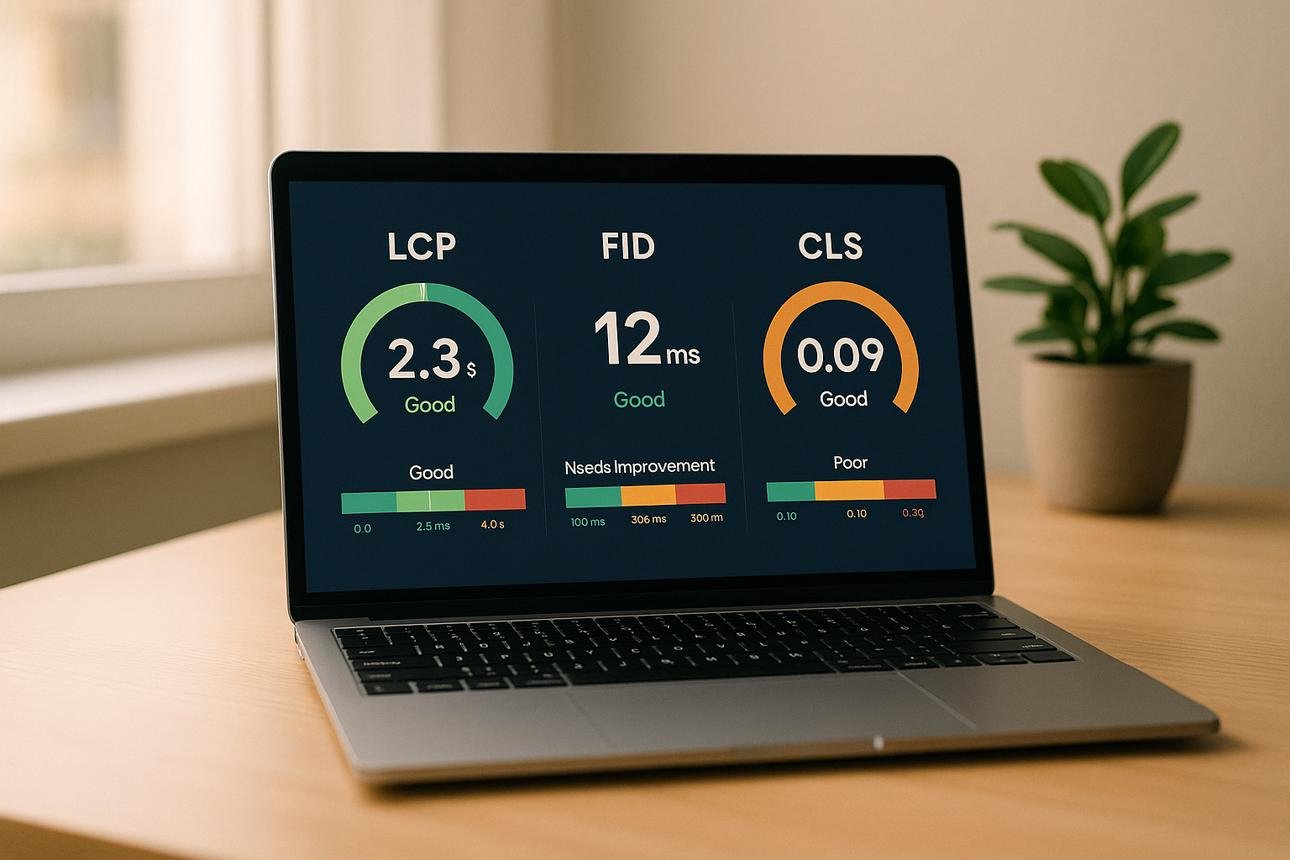
14. Improve Your Website’s Core Web Vitals
Core Web Vitals are Google’s measurements of important aspects of the visitor experience.
They focus on loading performance, responsiveness, and visual stability.
The three main Core Web Vitals are:
Largest Contentful Paint (LCP): Measures how quickly the largest visible content element loads. Aim for 2.5 seconds or less.
Interaction to Next Paint (INP): Measures how responsive a website is when visitors interact with it. Aim for 200 milliseconds or less.
Cumulative Layout Shift (CLS): Measures unexpected movement of website elements while a page loads. Aim for a score of 0.1 or less.
You can improve these measurements by:
- Optimizing the main image on each page.
- Improving server response time.
- Reducing unnecessary JavaScript.
- Using efficient fonts.
- Reserving space for images and advertisements.
- Avoiding unnecessary pop-ups and animations.
- Improving caching and resource delivery.
Good Core Web Vitals can contribute to a better user experience, although they do not guarantee higher Google rankings.
15. Test Your WordPress Website Speed Regularly
Website speed optimization should not be a one-time activity. Your website can become slower when you install new plugins, upload large images, change themes, or add external scripts.
Testing your website regularly helps you identify performance problems before they affect too many visitors.
Here are some useful free testing tools:
Google PageSpeed Insights: Provides performance reports for mobile and desktop devices, along with optimization recommendations.
GTmetrix: Helps analyze page-loading performance and identify resources that may be slowing down your website.
WebPageTest: Provides detailed performance testing under different network and browser conditions.
Google Search Console: Includes a Core Web Vitals report based on real-world user experience data where sufficient data is available.
Test important pages separately, including your homepage, blog posts, category pages, and landing pages.
Do not focus only on achieving a perfect score. Pay attention to actual loading problems and improvements that make your website easier to use.
Common Mistakes to Avoid When Improving WordPress Speed
Many website owners install several optimization plugins and activate every available setting. This approach can sometimes create more problems than it solves.
Avoid these common mistakes:
- Installing multiple caching plugins that conflict with each other.
- Uploading large images without compression.
- Using too many animations and unnecessary visual effects.
- Installing plugins without checking their quality.
- Ignoring mobile website performance.
- Changing server settings without creating a backup.
- Lazy-loading important images above the fold.
- Combining or delaying scripts without testing website functionality.
- Choosing cheap hosting without considering server performance.
- Focusing only on speed scores instead of real visitor experience.
A good optimization strategy should improve performance without breaking your website.
Frequently Asked Questions (FAQs)
1. How can I make my WordPress website faster?
Start by choosing reliable hosting, installing one suitable caching solution, optimizing images, using a lightweight theme, removing unnecessary plugins, and enabling a CDN when appropriate. Test your website before and after making changes.
2. Which WordPress plugin is best for speed optimization?
There is no single best plugin for every website. WP Rocket, LiteSpeed Cache, W3 Total Cache, and WP Super Cache are popular options. Your hosting environment and website requirements should determine which one you choose.
3. Does website speed affect SEO?
Website speed and page experience matter for SEO. Google uses Core Web Vitals as part of its page experience considerations, but good speed scores alone do not guarantee high rankings. Relevant, helpful content and other SEO factors remain important.
4. What is a good loading time for a WordPress website?
A website should load its important content quickly, ideally within a few seconds. For Core Web Vitals, Google recommends an LCP of 2.5 seconds or less, INP of 200 milliseconds or less, and CLS of 0.1 or less.
5. Can too many plugins slow down WordPress?
Yes, poorly coded or resource-intensive plugins can slow down a website. However, the number of plugins alone does not determine performance. Plugin quality, functionality, database activity, and server resources also matter.
6. Is Cloudflare useful for WordPress speed?
Cloudflare can improve website performance through its CDN, caching, and other delivery features. Its effectiveness depends on how your website is configured and which services you enable.
Conclusion
Boosting WordPress website speed is essential for creating a better experience for visitors and maintaining a healthy website. A fast website makes it easier for people to access your content, navigate between pages, and interact with your business.
You can improve performance by choosing reliable hosting, using a caching plugin, optimizing images, selecting a lightweight theme, removing unnecessary plugins, and using a CDN. You should also monitor Core Web Vitals and test your website regularly.
Remember that speed optimization is an ongoing process. Make changes carefully, test your website after each major adjustment, and focus on improvements that benefit real visitors.
With consistent maintenance and the right optimization techniques, you can build a faster, more reliable, and more professional WordPress website.
SEO Title: How to Boost WordPress Website Speed: 15 Effective Tips
Focus Keyword: How to boost WordPress website speed
Slug: boost-wordpress-website-speed
Meta Description: Learn how to boost WordPress website speed with 15 practical tips, including caching, image optimization, CDN setup, and Core Web Vitals improvements.
Category: WordPress, Website Optimization, SEO
Tags: WordPress Speed Optimization, Website Speed, WordPress Caching, Image Optimization, Core Web Vitals, WordPress Plugins, Website Performance

Adeeb Malik is the founder of Capdigitals, where he shares practical insights on digital marketing, blogging, SEO, and online earning. He focuses on simplifying complex strategies into easy, actionable steps for beginners. The content is based on research, real-world concepts, and learning resources. All information is for educational purposes only and does not constitute financial or business advice.