
How to Use Google Search Console to Improve SEO: A Complete Beginner’s Guide
Google Search Console (GSC) is one of the most important free tools website owners, bloggers, and digital marketers can use to improve their search engine optimization (SEO). It helps you understand how Google discovers, crawls, and indexes your website. It also provides valuable information about the keywords people use to find your content, how often your pages appear in search results, and how many visitors click on your website.
Whether you run a personal blog, business website, affiliate marketing website, or online store, Google Search Console can help you identify SEO problems and discover opportunities to increase organic traffic.
The best part is that you do not need to be an SEO expert to use it. With a basic understanding of its reports and features, you can make informed decisions that gradually improve your website’s visibility on Google.
In this guide, you will learn how to use Google Search Console step by step to improve your website’s SEO.
What Is Google Search Console?
Google Search Console is a free service provided by Google that allows website owners to monitor and maintain their website’s presence in Google Search results.
It provides information about your website’s search performance, indexing status, technical problems, and other important SEO factors.
For example, you can use Google Search Console to:
- Discover which keywords bring visitors to your website.
- Monitor clicks and impressions from Google Search.
- Identify pages that are not indexed.
- Find technical SEO and crawling problems.
- Submit XML sitemaps.
- Check your website’s Core Web Vitals.
- Discover which websites link to your content.
- Monitor changes in your organic search performance.
Google Search Console does not directly improve your rankings. Instead, it gives you information that helps you identify problems, improve content, and make better SEO decisions.
1. Set Up Google Search Console for Your Website
The first step is to connect your website to Google Search Console.
Follow these steps:
- Visit the official Google Search Console website.
- Sign in with your Google account.
- Click the option to add a property.
- Choose between Domain and URL prefix.
- Enter your website address.
- Complete the required ownership verification.
- Open your website property after verification.
There are two main property types.
Domain Property: This option covers all subdomains and protocols associated with your domain. Verification generally requires adding a DNS record.
URL Prefix Property: This option covers URLs that match the exact prefix you enter. You can verify ownership using supported methods such as an HTML file, HTML tag, Google Analytics, or Google Tag Manager.
For most website owners who want complete domain coverage, the Domain Property is a useful choice.
Once your website is verified, Google Search Console can begin collecting performance and indexing information.
2. Use the Performance Report to Discover Valuable Keywords
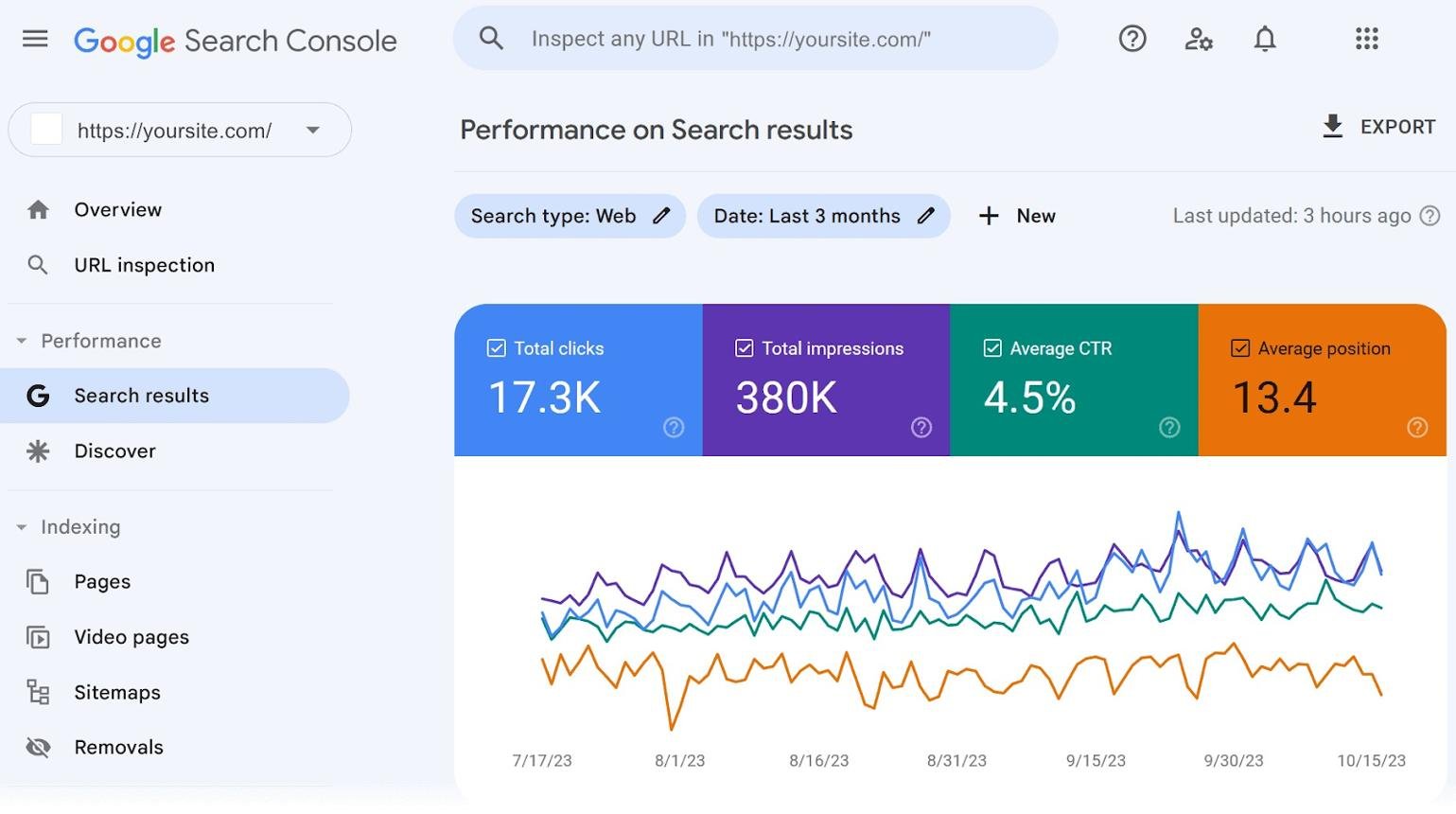
The Performance report is one of the most useful features in Google Search Console.
It shows how your website performs in Google Search and provides information about the search queries that display your pages.
You can find four important metrics:
Total Clicks: The number of times users clicked your website from Google Search results.
Total Impressions: The number of times your website appeared in Google Search results.
Average CTR: The percentage of impressions that resulted in clicks.
Average Position: The average position of your website’s highest-ranking result for the selected data.
These metrics help you understand whether your content is attracting attention from search users.
For example, imagine one of your blog posts receives:
- 5,000 impressions.
- 150 clicks.
- An average CTR of 3%.
- An average position of 12.
This information suggests that Google is displaying your article, but there may be an opportunity to improve its visibility and attract more clicks.
You can examine the queries associated with the page to understand what people are searching for.
How to use this report for SEO:
- Open Google Search Console.
- Select your website property.
- Click Performance.
- Open the Search results report.
- Select a suitable date range.
- Review the Queries and Pages tabs.
- Identify keywords and pages with improvement opportunities.
Pay attention to search queries that are relevant to your website but are not properly covered in your articles.
You can use these keywords to improve existing content or plan new blog posts.
3. Find Keywords Your Website Is Already Ranking For
One of the biggest advantages of Google Search Console is that it reveals keywords you might not have discovered through traditional keyword research.
For example, suppose you publish an article about making money through blogging.
Google Search Console might show that your page receives impressions for searches such as:
- How to make money blogging.
- How much do bloggers earn?
- How to start a profitable blog.
- Ways to earn money from a website.
- How to get traffic to a new blog.
These related searches can help you understand what your audience wants to know.
You can use this information to improve your existing article by adding useful explanations, relevant headings, examples, and answers to related questions.
However, avoid adding keywords simply to increase keyword frequency. Your content should remain natural, informative, and helpful.
4. Improve Pages With High Impressions but Low Click-Through Rates
A page can appear thousands of times in Google Search without receiving many clicks.
This may happen because its title is not attractive, its description does not clearly communicate the article’s value, or the search result does not closely match what users want.
Google Search Console helps you identify these opportunities.
For example:
| SEO metric | Example result |
|---|---|
| Impressions | 10,000 |
| Clicks | 200 |
| CTR | 2% |
| Average position | 7 |
This page has visibility, but you may be able to attract more visitors by improving its search result presentation.
Consider these improvements:
Write Better SEO Titles: Create clear, descriptive titles that communicate the main benefit of the article.
Improve Meta Descriptions: Write unique descriptions that accurately summarize the page and encourage relevant users to click.
Match Search Intent: Make sure the article answers the question behind the keyword.
Use Specific Language: Avoid vague titles that do not explain what readers will learn.
For example, instead of using a general title such as “Blogging Tips,” you could write “10 Practical Blogging Tips for Beginners to Grow Website Traffic.”
Remember that Google may generate its own title links and snippets, so changing your title or meta description does not guarantee that Google will display exactly what you wrote.
5. Check Your Website’s Indexing Status
Indexing is an important part of SEO.
Before a page can appear in Google Search results, Google generally needs to discover, crawl, and index it.
Google Search Console provides a Page indexing report that helps you understand which pages have been indexed and which have not.
To check your indexing status:
- Open Google Search Console.
- Select your website.
- Navigate to the Page indexing report.
- Review the indexed and non-indexed URLs.
- Click on individual reasons to investigate affected pages.
Some common indexing issues include:
- Page with redirect.
- Not found (404).
- Crawled – currently not indexed.
- Discovered – currently not indexed.
- Blocked by robots.txt.
- Excluded by a noindex tag.
- Duplicate page or alternative page with a proper canonical tag.
Not every non-indexed page represents an SEO problem. For example, duplicate URLs, redirected pages, and intentionally excluded pages may be correctly left out of Google’s index.
Your main priority should be ensuring that important, original, useful pages are accessible and eligible for indexing.
6. Use the URL Inspection Tool to Fix Individual Pages
The URL Inspection tool allows you to examine how Google understands a specific page on your website.
It is particularly helpful when a newly published article does not appear in Google Search.
To use it:
- Open Google Search Console.
- Copy the full URL of your blog post.
- Paste it into the inspection bar at the top.
- Wait for the inspection results.
- Review the indexing information.
- If necessary, click Test Live URL.
- Fix any problems identified.
- Request indexing if the page is ready.
For example, if you publish a new article on your WordPress website, you can inspect its URL to determine whether Google has discovered and indexed it.
If the page is not indexed, check whether it has a noindex directive, is blocked by robots.txt, returns an error, or has another indexing problem.
Requesting indexing does not guarantee immediate indexing or higher rankings. Google decides when and whether to index a page.
7. Submit Your XML Sitemap to Google
An XML sitemap helps Google discover important URLs on your website.
It is especially useful for new websites, large websites, and websites that regularly publish new content.
If you use WordPress, SEO plugins such as Yoast SEO or Rank Math can automatically generate an XML sitemap.
A sitemap URL may look like:
https://example.com/sitemap_index.xml
The exact address depends on your website and SEO plugin.
How to submit your sitemap:
- Open Google Search Console.
- Select your website property.
- Click Sitemaps.
- Enter your sitemap URL.
- Click Submit.
- Check the submission status.
After submission, Google can use the sitemap to discover URLs on your website.
Remember that submitting a sitemap does not guarantee that every listed page will be crawled or indexed. Your sitemap should contain canonical, indexable URLs that you actually want search engines to discover.
8. Monitor Core Web Vitals and Website Experience
Website performance is another important area to monitor.
Google Search Console includes a Core Web Vitals report that uses real-world user experience data to show how your pages perform.
It focuses on three important measurements:
Largest Contentful Paint (LCP): Measures how quickly the main content of a page becomes visible. A good LCP score is 2.5 seconds or less.
Interaction to Next Paint (INP): Measures how quickly a page responds to user interactions. A good INP score is 200 milliseconds or less.
Cumulative Layout Shift (CLS): Measures unexpected layout movement while a page loads. A good CLS score is 0.1 or less.
If your website has poor Core Web Vitals, consider these improvements:
- Compress large images.
- Use modern image formats such as WebP or AVIF.
- Choose reliable website hosting.
- Reduce unnecessary plugins.
- Minimize excessive JavaScript.
- Use browser caching.
- Optimize your WordPress theme.
- Remove unnecessary third-party scripts.
Improving these measurements can make your website more comfortable to use. However, good Core Web Vitals alone do not guarantee higher Google rankings.
9. Discover Internal Linking Opportunities
Internal links connect one page of your website to another.
They help visitors discover related information and help search engines understand your website’s structure.
Google Search Console includes a Links report that provides information about internal links and external links.
You can use this report to identify important pages that receive relatively few internal links.
For example, if you have articles about blogging, SEO, affiliate marketing, and website traffic, you can connect related articles through relevant internal links.
Consider these practices:
- Link related articles naturally.
- Use descriptive anchor text.
- Link important pages from relevant content.
- Avoid excessive or irrelevant links.
- Make sure visitors can navigate your website easily.
A well-organized internal linking structure can help search engines discover important content and help readers explore more pages.
10. Monitor Backlinks Through the Links Report
Backlinks are links from other websites that point to your website.
They can help search engines understand how other websites reference your content.
Google Search Console provides a Links report where you can review:
- Top linking websites.
- Top linked pages.
- Common anchor text.
- Internal links.
You can use this information to understand which pages attract external references.
For example, if several websites link to one of your educational articles, you may want to create more useful content around that subject.
Focus on earning relevant, natural backlinks through original research, useful guides, informative resources, and genuine industry relationships.
Avoid purchasing large quantities of low-quality backlinks or participating in manipulative link schemes.
11. Identify Pages That Are Losing Organic Traffic
Another useful SEO strategy is comparing website performance over time.
Google Search Console allows you to compare different date ranges.
For example, you can compare the last 28 days with the previous 28 days to identify changes in clicks and impressions.
If an article suddenly loses traffic, investigate possible reasons.
These may include:
- Increased competition.
- Outdated information.
- Changes in search demand.
- Search algorithm updates.
- Technical indexing problems.
- Changes in search intent.
- Weak or incomplete content.
Once you identify the problem, take appropriate action.
You may need to update statistics, improve explanations, add missing sections, correct technical errors, or make the article more useful.
Do not assume every traffic decline is caused by a Google penalty. Investigate the data before making major changes.
12. Create an SEO Improvement Routine
Google Search Console becomes more useful when you check it regularly and turn its reports into practical improvements.
Here is a simple routine for bloggers and website owners.
Daily or after publishing: Inspect important new pages when necessary and confirm that your sitemap is functioning correctly.
Weekly: Review clicks, impressions, keywords, and pages with unusual performance changes.
Monthly: Compare performance with previous periods, investigate indexing problems, review Core Web Vitals, and identify articles that need updating.
Every few months: Review your internal linking structure, backlinks, website content quality, and overall SEO strategy.
You do not need to make changes to every page every week. Focus on the issues and opportunities that have the greatest potential value.
Common Google Search Console Mistakes to Avoid
Although Google Search Console is easy to use, beginners sometimes misunderstand its reports.
Here are some mistakes to avoid:
1. Expecting Immediate Indexing: Submitting a URL does not guarantee that Google will index it immediately.
2. Trying to Index Every URL: Duplicate, redirected, and unimportant pages do not necessarily need to be indexed.
3. Ignoring Search Queries: Your keyword data can reveal valuable content opportunities.
4. Focusing Only on Rankings: Clicks, impressions, CTR, indexing, and user experience also matter.
5. Making Changes Without Investigating: Always understand why a page is losing traffic or experiencing indexing problems before editing it.
6. Ignoring Mobile Performance: Make sure your website works properly on smartphones and tablets.
7. Expecting Guaranteed Rankings: Search Console helps you make informed SEO improvements, but it cannot guarantee first-page rankings.
Conclusion
Google Search Console is an essential free SEO tool for bloggers, website owners, and digital marketers who want to improve their visibility on Google.
By regularly checking the Performance report, discovering valuable keywords, improving click-through rates, monitoring indexing, submitting XML sitemaps, and reviewing Core Web Vitals, you can identify problems and make better decisions about your website.
The most effective approach is to use the information from Google Search Console to improve your content and website experience continuously.
If you are running a WordPress blog, make Google Search Console part of your regular SEO routine. Over time, consistent improvements can help your website become more discoverable, attract relevant visitors, and build a stronger presence in search results.
Frequently Asked Questions (FAQs)
1. Is Google Search Console free?
Yes. Google Search Console is a free service that allows website owners to monitor their website’s performance and indexing in Google Search.
2. Can Google Search Console improve website rankings?
It does not directly improve rankings. However, it helps you identify SEO problems, discover keywords, and improve website content and technical performance.
3. How often should I check Google Search Console?
Beginners can review it weekly and perform a more detailed SEO analysis every month. You should also check it when investigating sudden traffic changes or technical problems.
4. Does Google Search Console show all the keywords people use?
No. It provides useful search query data, but some queries may be omitted for privacy or other reporting reasons.
5. Why are my blog posts not indexed by Google?
Possible reasons include a noindex directive, crawling restrictions, duplicate content, technical errors, or Google not having discovered the page yet. Use URL Inspection to investigate the specific URL.
6. Do I need Google Analytics if I use Google Search Console?
They serve different purposes. Search Console focuses on your website’s performance in Google Search, while Google Analytics helps you understand visitor activity on your website. Using both can provide a broader understanding of your website.
7. Can I use Google Search Console with WordPress?
Yes. You can verify a WordPress website using supported verification methods and use an SEO plugin to generate an XML sitemap.
SEO Details
SEO Title: How to Use Google Search Console to Improve SEO: Beginner’s Guide
Focus Keyword: How to use Google Search Console to improve SEO
Slug: use-google-search-console-to-improve-seo
Meta Description: Learn how to use Google Search Console to improve SEO, find keywords, fix indexing problems, monitor website performance, and increase organic traffic.
Category: SEO
Tags: Google Search Console, SEO Tips, Search Engine Optimization, Keyword Research, Website Traffic, WordPress SEO, Organic Traffic, Technical SEO

Adeeb Malik is the founder of Capdigitals, where he shares practical insights on digital marketing, blogging, SEO, and online earning. He focuses on simplifying complex strategies into easy, actionable steps for beginners. The content is based on research, real-world concepts, and learning resources. All information is for educational purposes only and does not constitute financial or business advice.